Yealink VLAN DHCP Scope configuration on VLAN Windows DHCP Server
Yealink VLAN DHCP Scope configuration on VLAN Windows DHCP Server
Yealink VLAN DHCP Scope configuration on VLAN Windows DHCP Server
To configure Yealink phones to get VLAN ID from the default DHCP Server follow the below instructions.
Step 1
Login to local windows dhcp server and configure a new scope option for Yealink phone. a) Right click IPv4 b) select “Set Predefined Options” 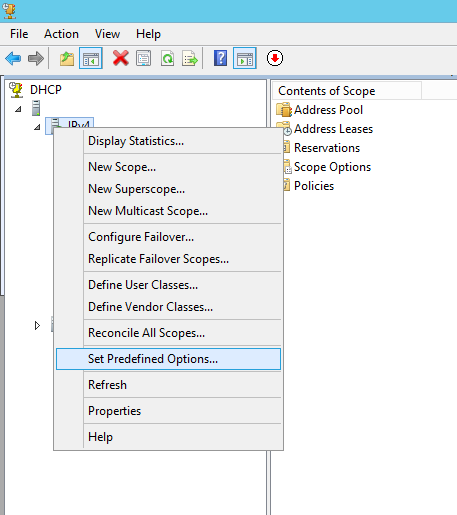
Step 2
a) Click on “Add” b) Fill the “Option Type” c) Select “Data Type” as String. d) Code is “132” e) Finish the Options by clicking ”OK” on all other dialog boxes. 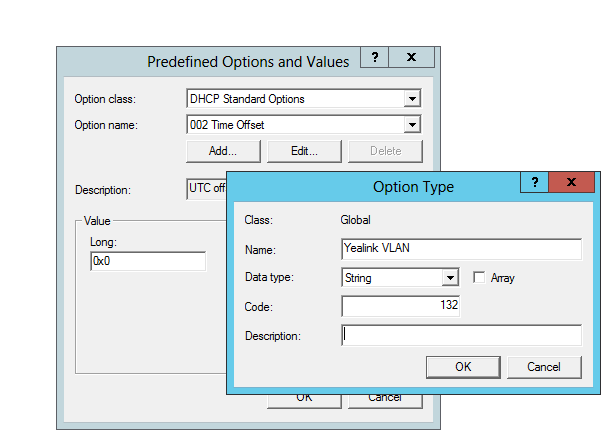
Step 3
a) Right click Scope Options b) Select “Configure Options” 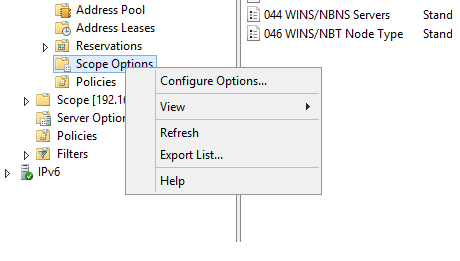
Step 4
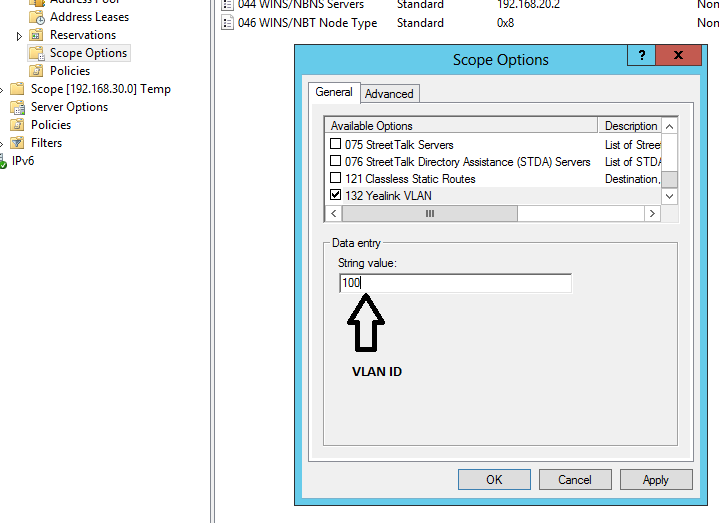
a) Scroll till the end of the list and select the Yealink VLAN option. b) Under String value put the VLAN ID which you want to set on yealink phone.
This post is licensed under CC BY 4.0 by the author.