INSTALL ODOO 8 ON UBUNTU 16.04
Odoo (formerly known as OpenERP[1] and before that, TinyERP) is a suite of open core enterprise management applications. Targeting companies of all sizes, the application suite includes billing, accounting, manufacturing, purchasing, warehouse management, and project management.[2]
The source code for the OpenObject framework and core ERP (enterprise resource planning) modules is curated by the Belgium based Odoo S.A. Additionally, customized programming, support, and other services are provided by an active global community and a network of 500 official partners. The main Odoo components are the OpenObject[3] framework, about 30 core modules (also called official modules) and more than 3000 community modules.[4][5][6][7]
Update apt source list
1
sudo apt-get update
Install Updates
1
sudo apt-get upgrade
Install Python Dependencies for Odoo 8
1
sudo apt-get install python-dateutil python-docutils python-feedparser python-jinja2 python-ldap python-libxslt1 python-lxml python-mako python-mock python-openid python-psycopg2 python-psutil python-pybabel python-pychart python-pydot python-pyparsing python-reportlab python-simplejson python-tz python-unittest2 python-vatnumber python-vobject python-webdav python-werkzeug python-xlwt python-yaml python-zsi poppler-utils python-pip python-passlib python-decorator python-requests
Install Python Dependency pyPdf
1
2
3
4
5
6
7
8
9
cd /usr/src/

wget http://pybrary.net/pyPdf/pyPdf-1.13.tar.gz

tar -zxvf pyPdf-1.13.tar.gz

cd pyPdf-1.13

python setup.py install
Install supporting packages for Odoo 8
1
sudo apt-get install gcc python-dev mc bzr python-setuptools python-babel python-feedparser python-reportlab-accel python-zsi python-openssl python-egenix-mxdatetime python-jinja2 python-unittest2 python-mock python-docutils lptools make python-psutil python-paramiko poppler-utils python-pdftools antiword
Install PostgreSQL and GIT
1
2
3
sudo apt-get install python-software-properties
 sudo apt-get update
 sudo apt-get install postgresql-9.3
Create Database user for OpenERP Odoo
1
2
3
4
sudo su postgres
postgres@odoo:/$ createuser -s odoo
postgres@odoo:/$ createuser -s system_name
postgres@odoo:/$ exit
Create Odoo user and group
1
sudo adduser --system --home=/opt/odoo --group odoo
Download & Install Gdata
1
2
3
4
5
6
7
8
cd /usr/src/
 sudo wget http://gdata-python-client.googlecode.com/files/gdata-2.0.17.tar.gz
 sudo tar zxvf gdata-2.0.17.tar.gz
 sudo chown -R odoo: gdata-2.0.17
 sudo -s
 cd gdata-2.0.17/
 python setup.py install
 exit
Get latest Odoo 8 from github repository.
Download the Zip file from URL: “https://github.com/odoo/odoo/tree/8.0″.
Copy contents of the zip files to /opt/odoo
1
2
3
4
5
cd /usr/src/
sudo wget https://github.com/odoo/odoo/archive/8.0.zip
sudo unzip 8.0.zip
sudo mv odoo-8.0/* /opt/odoo/
sudo chown -R odoo: /opt/odoo
Create folder for custom and test addons (OPTIONAL)
1
2
3
sudo mkdir custom-addons test-addons
sudo chown -R openerp: custom-addons
sudo chown -R openerp: test-addons
Create Odoo Log File
1
2
sudo mkdir /var/log/odoo
sudo chown -R odoo:root /var/log/odoo
Edit Odoo configuration file
1
2
3
sudo cp /opt/odoo/debian/openerp-server.conf /etc/odoo-server.conf
sudo chown odoo: /etc/odoo-server.conf
Edit /etc/odoo-server.conf
1
2
3
4
5
6
7
8
9
10
11
12
#Copy and paste below content in config file, write correct addons paths
 [options]
 ; This is the password that allows database operations:
 admin_passwd = admin
 db_host = False
 db_port = False
 db_user = odoo
 db_password = False
 addons_path = /opt/odoo/addons,/opt/odoo/openerp/addons
 ;Log settings
 logfile = /var/log/odoo/odoo-server.log
 log_level = error
Setup Odoo service file
Copy and paste below lines to /etc/init.d/odoo-server file
1
2
3
4
5
6
7
8
9
10
11
12
13
14
15
16
17
18
19
20
21
22
23
24
25
26
27
28
29
30
31
32
33
34
35
36
37
38
39
40
41
42
43
44
45
46
47
48
49
50
51
52
53
54
55
56
57
58
59
60
61
62
63
64
65
66
67
68
69
70
71
72
73
74
75
76
77
78
79
80
81
82
83
84
85
86
87
88
89
90
91
92
93
94
95
 #!/bin/sh

### BEGIN INIT INFO

# Provides:             odoo-server

# Required-Start:       $remote_fs $syslog

# Required-Stop:        $remote_fs $syslog

# Should-Start:         $network

# Should-Stop:          $network

# Default-Start:        2 3 4 5

# Default-Stop:         0 1 6

# Short-Description:    Complete Business Application software

# Description:          Odoo is a complete suite of business tools.

### END INIT INFO

PATH=/bin:/sbin:/usr/bin

DAEMON=/opt/odoo/openerp-server

NAME=odoo-server

DESC=odoo-server

# Specify the user name (Default: odoo).
USER=odoo
# Specify an alternate config file (Default: /etc/odoo-server.conf).
CONFIGFILE="/etc/odoo-server.conf"
# pidfile
PIDFILE=/var/run/$NAME.pid
# Additional options that are passed to the Daemon.

DAEMON_OPTS="-c $CONFIGFILE"
[ -x $DAEMON ] || exit 0

[ -f $CONFIGFILE ] || exit 0

checkpid() {

    [ -f $PIDFILE ] || return 1

    pid=`cat $PIDFILE`

    [ -d /proc/$pid ] && return 0

    return 1

}

case "${1}" in
        start)
                echo -n "Starting ${DESC}: "
                start-stop-daemon --start --quiet --pidfile ${PIDFILE} \

                        --chuid ${USER} --background --make-pidfile \

                        --exec ${DAEMON} -- ${DAEMON_OPTS}

                echo "${NAME}."
                ;;

        stop)
                echo -n "Stopping ${DESC}: "
               start-stop-daemon --stop --quiet --pidfile ${PIDFILE} \
                        --oknodo
                echo "${NAME}."

                ;;

        restart|force-reload)
                echo -n "Restarting ${DESC}: "
                start-stop-daemon --stop --quiet --pidfile ${PIDFILE} \
                       --oknodo
                sleep 1
                start-stop-daemon --start --quiet --pidfile ${PIDFILE} \
                       --chuid ${USER} --background --make-pidfile \
                        --exec ${DAEMON} -- ${DAEMON_OPTS}
                echo "${NAME}."
                ;;

        *)
                N=/etc/init.d/${NAME}
                echo "Usage: ${NAME} {start|stop|restart|force-reload}" >&2
                exit 1
                ;;
esac
exit 0
Now Start Odoo Server
1
sudo service odoo-server start
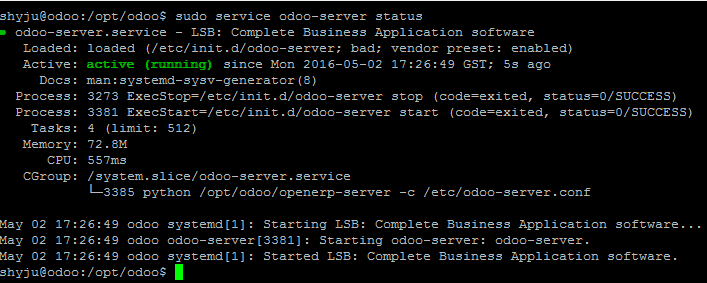
Check the Status of the Service
1
sudo service odoo-server start
 Go to web browser to access Odoo 8
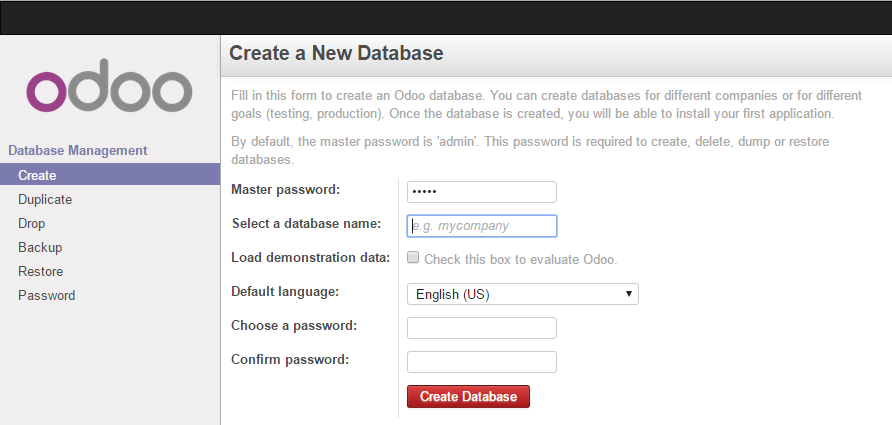
http://odoo-server-ip:8069
Make a new database, use the password which you have assigned in /etc/odoo-server.conf as master password .
| Following are the other extra commands to be used while installing and using OpenERP when unusual error occurred such as: Error 1. “Address already in use “: Then check the port through ps aux | grep openerp locate openerp kill -9 portno. Error 2. “Module or dependency not found”: then install that through sudo apt-get install name_dependency |